Saturday, April 3, 2010

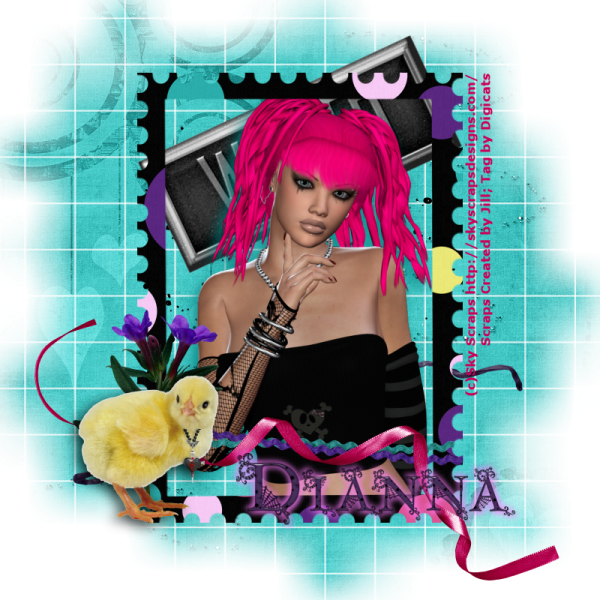
Wicked Chic tutorial (FTU)

Wicked Chic


This tutorial was written by Dianna Richards of Digicats (and Dogs)/Di Before Dawn Tutorials. Any resemblance to any other tutorial, published or unpublished, living, dead or undead, is purely coincidental.

Please do not rebroadcast, redistribute or otherwise claim this tutorial or any part there of as your own work.


Items you will need to complete this project:

The Goth Chic Sampler taggers kit Created by Jill. This is a FTU kit, which can be downloaded from Jill's blog.

Tube of choice. I am using Goth Chic 2 (Close up) by Sky Scraps. This is a FTU tube which may be downloaded from Marie's tubes blog.

Wee Scots Lass mask #281 which you can download HERE.

Font(s) and/or alpha of choice. I am using Verdana which is a windows system font, and the Gothic Chic alpha, which is a FTU alpha by Whispy's D'zines. This is a full sized alpha I have resized for tagging purposes.


Note that H# and V# refer to Horizontal and vertical coordinates on your canvas grid. Make sure you have View, Rulers checked in order to see the ruler grid.

When I say "Add to your canvas" I expect that you will copy and paste it as a new layer, unless otherwise state in the tutorial.

This tutorial assumes you have a working knowledge of PSP. It was written using PSP X1, but should work in PSP 8 and up.

To begin, open a new raster layer canvas, 800 x 800, flood fill white.

Open GCS_paper03_cbj. Layers --> Load/Save Mask --> Load Mask from Disk and locate Wee Scots Lass mask #84. Make sure the fit to canvas layer is checked, then click on load.

Go to image --> resize and resize the mask layer only by 125%. (Unclick the box that says "resize all layers".)

Edit --> copy merged and add to main canvas, centered.

Open GCS_glitter_cbj and add to main canvas, centered at H400, V350.

Open GCS_workart_cbj and add to main canvas, centered at H400, V200. Image --> Free Rotate --> rotate left, 25 degrees.

Open GCS_twine_cbj and add to main canvas, centered at H400, V500.

Open SkyScraps_GC1 and resize to 75%. Add to canvas, centered.

Add a drop shadow of choice. I am using offsets, horizontal of 7, vertical of -7, opacity of 85, blur of 25, and color of #008080.

Open GCS_frame2_cbj, rotate left, copy and add to main canvas, centered. Using your pick tool, adjust it slightly to line up with the bottom edge of the tube.

Open GCS-ricrac2_cbj, resize to 55% and add to main canvas, centered at H400, V600.

On the layers pallet, click on the frame layer to activate, then, using your magic wand, click anywhere outside of the frame to select. With the selection still in place, click on the ricrac2 layer and then press your delete key.

Selections --> Select None.

Open GCS_ribbon_cbj and add to canvas, centered at H400, V600.

Open GCS_flower1_cbj and add to canvas, centered at H200, V550.

Open GCS_chick_cbj, resize to 50% and mirror. Copy and add to main canvas, centered at H200, V600. Add a drop shadow of choice to the chick.

On the materials pallet, set your foreground color to transparent and your background color to Goth Chic red (#cd0059).

Using font of choice, add the copyright info to the tag. For the Sky Scraps tube, that information is: (c)Sky Scraps http://skyscrapsdesigns.com/

You can then save the artist's copy of your tag as a .pspimage.

Using font or alpha of choice, add name of choice to tag. I am using the Gothic Chic alpha by Whispy's D'zines.

I have my name centered at H500, V630, and have added a drop shadow glow (color #ff80ff) to it.

Delete the white background layer and merge visible. Resize to 75% (600 x 600 pxl) and save as a .png file and your all done!

I hope you enjoyed this tutorial. If you should have a problem, please feel free to E-Mail Me and I'll be happy to help you out.

Friday, April 2, 2010

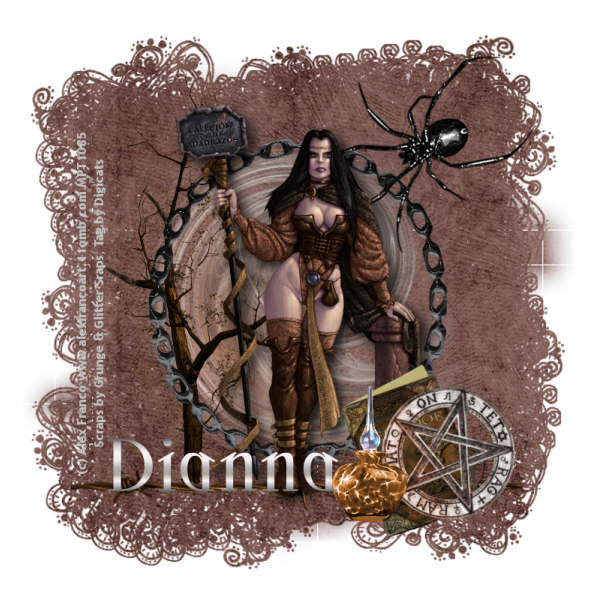
Wytchkraft tutorial (PTU)

WytchKraft


This tutorial was written by Dianna Richards of Digicats (and Dogs)/Di Before Dawn Tutorials. Any resemblance to any other tutorial, published or unpublished, living, dead or undead, is purely coincidental.

Please do not rebroadcast, redistribute or otherwise claim this tutorial or any part there of as your own work.


Items you will need to complete this project:

The The Craft ptu taggers kit by Grunge & Glitter Scraps. This is a PTU kit, which is available exclusively at Sophisti-Scraps.com.

Tube of choice. I am using psp12795-Violet by Alex Franco. You must have a license to use this tube, which may be purchased at MyPSPTubes.com.

Wee Scots Lass mask #283 which you can download HERE.

Font(s) and/or alpha of choice. I am using Trebuchet MS which is a windows system font, and Scythe, which is a free to use font that may be downloaded from Outlaw by Design.


Note that H# and V# refer to Horizontal and vertical coordinates on your canvas grid. Make sure you have View, Rulers checked in order to see the ruler grid.

When I say "Add to your canvas" I expect that you will copy and paste it as a new layer, unless otherwise state in the tutorial.

This tutorial assumes you have a working knowledge of PSP. It was written using PSP X1, but should work in PSP 8 and up.

To begin, open a new raster layer canvas, 800 x 800, flood filled white.

Open Paper8. Layers --> Load/Save Mask --> Load Mask from Disk and select Wee Scots Lass mask #283. Make sure the fit to canvas box is checked, then click on load.

Copy Merged and add to main canvas, centered.

Open magic1, copy and add to main canvas, centered.

Open deadtree and add to canvas, centered at H300, V350.

Open frame1, copy and add to main canvas, centered.

Open spider. Image --> Mirror. Copy and add to main canvas, centered at H500, V200. Image --> Free Rotate --> rotate left, 20 degrees.

Open barbed wire, resize to 75% and add to main canvas, centered at H400, V650.

Open psp12795-SCFranco-Violet (or tube of choice) and add to main canvas, centered.

Add a drop shadow of choice to tube. I am using offsets, vertical and horizontal of 8 each, opacity of 85, blur of 25, color black (#000000).

Open spellbook and add to main canvas, centered at H550, V600.

Open pentagram, resize to 75% and add to main canvas, centered at H600, V600. Image --> Free Rotate --> rotate right, 15 degrees.

Open potionbottle1, add to main canvas centered at H500, V600.

On the materials pallet, set your foreground color to transparent and your background color to light gray (#c0c0c0).

Using font of choice, add the copyright information to your tube. For the Alex Franco tube, that information is: (c) Alex Franco www.alexfrancoart.11omb.com Your MPT_License#.

I am using Trebuchet MS, which is a windows system font, 4 points, bold and centered.

You can now save the artist's copy of your tag as a .pspimage file.

Using font or alpha of choice add name of choice to tag. I am using the font Scythe with a silver gradient, 24 points, Bold, and Centered. I have my name centered at H300, V620, actual location will depend on the length and size of the name you are using.

Delete the white background layer, and merge visible. Resize your tag to 75% (600 x 600) and save as a .png file and your all done!

I hope you enjoyed this tutorial. If you should have a problem, please feel free to E-Mail Me and I'll be happy to help you out.
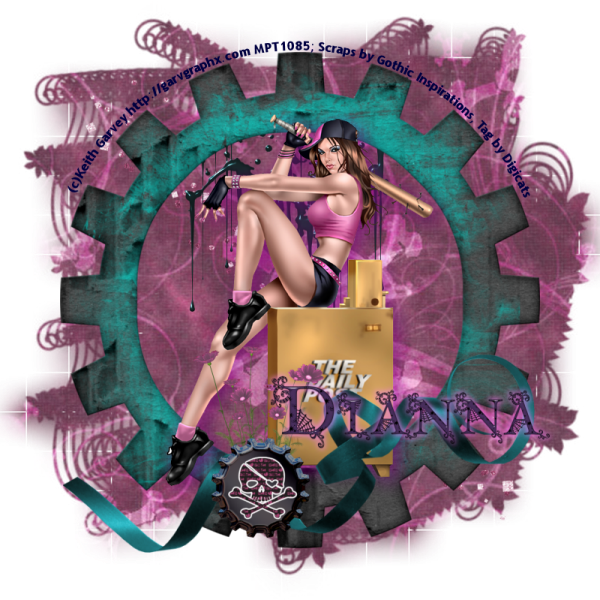
Batter Up tutorial (PTU)

Batter Up


This tutorial was written by Dianna Richards of Digicats (and Dogs)/Di Before Dawn Tutorials. Any resemblance to any other tutorial, published or unpublished, living, dead or undead, is purely coincidental.

Please do not rebroadcast, redistribute or otherwise claim this tutorial or any part there of as your own work.


Items you will need to complete this project:

The Goth Chic taggers kit by Gothic Inspirations. This is a PTU kit, which is available at Gothic Inspirations.

Tube of choice. I am using psp7496-Baseball by Keith Garvey. You must have a license to use this tube, which may be purchased at MyPSPTubes.com.

Wee Scots Lass mask #281 which you can download HERE.

Font(s) and/or alpha of choice. I am using Trebuchet MS which is a windows system font, and the Gothic Chic alpha, which is a FTU alpha by Whispy's D'zines. This is a full sized alpha I have resized for tagging purposes.


Note that H# and V# refer to Horizontal and vertical coordinates on your canvas grid. Make sure you have View, Rulers checked in order to see the ruler grid.

When I say "Add to your canvas" I expect that you will copy and paste it as a new layer, unless otherwise state in the tutorial.

This tutorial assumes you have a working knowledge of PSP. It was written using PSP X1, but should work in PSP 8 and up.

Open a new raster layer canvas, 800 x 800, flood fill white.

Open Paper12_GI_GothChic. Layers --> Load/Save Mask --> Load Mask from Disk and select Wee Scots Lass mask #281. Make sure the fit to canvas box is checked, then click on load.

Copy merged, and add to main canvas, centered.

Open GlitterSpill-GI_GothChic, resize to 75% and add to main canvas, centered.

Oepn Splatter1_GI_GothChic, and add to main canvas, centered at H400, V300.

Open Frame4-GI_GothChic, resize to 75% and add to main canvas, centered.

Open psp7496-SCGarvey-Baseball, copy the tube layer and add to main canvas, centered.

Add a drop shadow of choice to tube. I am using offsets vertical and horizontal of 7 each, opacity of 65, blur of 35 and color of dark purple (#800080).

Open Flowers-GI_GothChic, resize to 35% and add to main canvas, centered at H350, V550.

Open Ribbon2-GI_GothChic and add to main canvas, centered at H400, V600.

Open BottleCap1-GI_GothChic, resize to 50% and add main canvas, centered at H350, V650.

On the Materials pallet, set your foreground color to transparent and your background color to navy blue (#000040).

Using font of choice, add copyright info to the tag. For the Garvey Baseball tube, that information is:

(c)Keith Garvey http://garvgraphx.com Your_MPT_LIcense#

I am using Trebuchet MS, which is a windows system font, 4 points, bold and centered, then I fit the text to path around the outside of the frame.

It is beyond the scope of this tutorial to explain how to do that, I promise I will write a separate tutorial for that soon, as long as my computer doesn't crash again.

You can now save your artist's copy as a .pspimage file.

Using font or alpha of choice, add name of choice to tag. I am using the Goth Chic alpha by Whispy's D'zines. I located my alpha centered at H550, V550, but actual location will depend on the size and length of the name your are using. I then added a drop shadow offsets V & H of 3 each, opacity 65, blur 10, color #ff80ff to make it stand out, as it's a dark alpha.

you can now delete the white background layer, merge visible and resize your tag to 75% (600 x 600 pxls). Save as a .png file and your all done.

I hope you enjoyed this tutorial. If you should have a problem, please feel free to E-Mail Me and I'll be happy to help you out.
Thursday, April 1, 2010

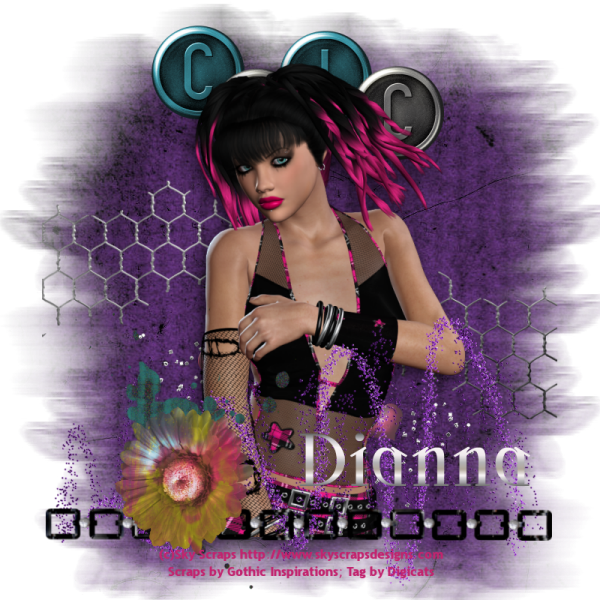
Goth Chic Tutorial (FTU)

Goth Chic


This tutorial was written by Dianna Richards of Digicats (and Dogs)/Di Before Dawn Tutorials. Any resemblance to any other tutorial, published or unpublished, living, dead or undead, is purely coincidental.

Please do not rebroadcast, redistribute or otherwise claim this tutorial or any part there of as your own work.


Items you will need to complete this project:

The Goth Chic Sampler taggers kit by Gothic Inspirations. This is a FTU kit, which is available on Jessica's Blog.

Tube of choice. I am using Goth Chic 7 (Close up) by Sky Scraps. This is a PTU tube which may be purchased at Sky Scraps Designs. Sky has a FTU Goth Chic tube which may be substituted for this one which is available at Marie's Blog.

Wee Scots Lass mask #260 which you can download HERE.

Font(s) and/or alpha of choice. I am using Trebuchet MS which is a windows system font, and Scythe, which is a free to use font that may be downloaded from Outlaw by Design.


Note that H# and V# refer to Horizontal and vertical coordinates on your canvas grid. Make sure you have View, Rulers checked in order to see the ruler grid.

When I say "Add to your canvas" I expect that you will copy and paste it as a new layer, unless otherwise state in the tutorial.

This tutorial assumes you have a working knowledge of PSP. It was written using PSP X1, but should work in PSP 8 and up.

Open a new raster layer canvas, flood filled white.

Open Paper3-GI_GothChicSampler. Layers --> Load/Save Mask --> Load Mask from Disk and locate Wee Scots Lass mask #260. Make sure the fit to canvas box is checked, then click on load.

Copy Merged and add to main canvas, centered.

Open Tule-GI_GothChicSampler and resize to 85%. Add to main canvas, centered.

Open HeartSpill-GI_GothChicSampler, and add to main canvas,centered at H400, V550.

Open WordArtTabs-GI_GothChicSampler and add to main canvas, centered at H400, V120.

Open SkyScraps-GC7 (or tube of choice). Resize to 85% and add to main canvas, centered. Add drop shadow of choice, I am using offsets, vertical of 7, horizontal -7, opacity 65, blur of 35, color black (#000000).

Open Glitter-GI_GothChicSampler, resize to 85% and add to main canvas, centered at H400, V600.

Open Chain-GI_GothChicSampler, resize to 85% and add to main canvas, centered at H400, V700.

Open Splatter-GI_GothChicSampler, resize to 75% and add to main canvas, centered at H350, V600.

Open Flower-GI_GothChicSampler, resize to 35% and add to main canvas, centered at H250, V650.

on the materials pallet, set your foreground color to transparent and your background color to Goth Chic red (#c3246f). using font of choice, enter the copyright information for the tube you are using.

For the Goth Chic tube, that information is (c)Sky Scraps http://www.skyscrapsdesigns.com

I am using Trebuchet MS, which is a windows system font, 4 points, bold and centered.

You can now save the artist's copy of your tag as a .pspimage file.

Using font or alpha of choice, add the name of choice to the tag. I am using the font Scythe, 36 points, bold and center with my material foreground set to transparent and my material background set to a silver gradient. I have centered at the name at H550, V650. Actual location will depend upon the size and length of the name you are using.

You can now delete the background layer, Merge visible, resize to 75% (600 x 600 pxls) and save your tag as a .png file and your all done!

I hope you enjoyed this tutorial. If you should have a problem, please feel free to E-Mail Me and I'll be happy to help you out.
Tuesday, March 23, 2010

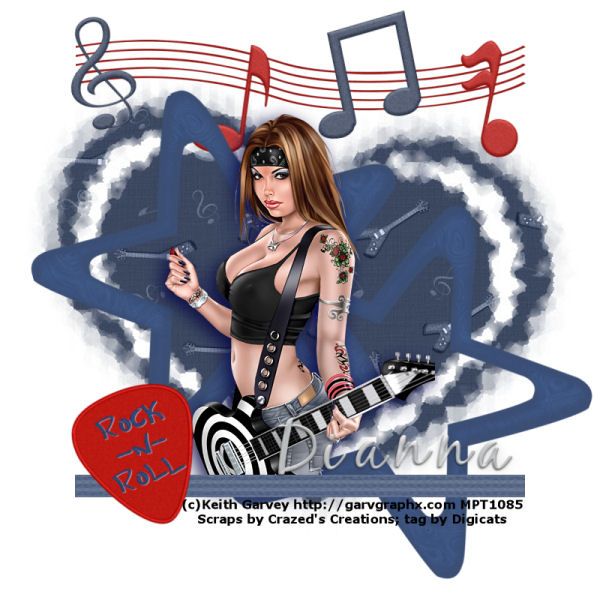
I Love Rock-N-Roll tutorial

I Love Rock-N-Roll


This tutorial was written by Dianna Richards of Digicats (and Dogs)/Di Before Dawn Tutorials. Any resemblance to any other tutorial, published or unpublished, living, dead or undead, is purely coincidental.

Please do not rebroadcast, redistribute or otherwise claim this tutorial or any part there of as your own work.


Items you will need to complete this project:

The Rock Star taggers kit by Crazed's Creations. This is a PTU kit, which is available at Scrappetizing.

Tube of choice. I am using psp0068 SC-Axe by Keith Garvey. You must have a license to use this tube, which is available at MyPSPTubes.com.

Katie has included several adorable Cookie posers in the kit which you may use instead of an artist's tube.

Wee Scots Lass mask #171 which you can download HERE.

Font(s) and/or alpha of choice. I am using Verdana which is a windows system font, and the Metal Gel alpha by Maria Stones. This is a FTU alpha which may be downloaded from Free Digital Scrapbooking.


Note that H# and V# refer to Horizontal and vertical coordinates on your canvas grid. Make sure you have View, Rulers checked in order to see the ruler grid.

When I say "Add to your canvas" I expect that you will copy and paste it as a new layer, unless otherwise state in the tutorial.

This tutorial assumes you have a working knowledge of PSP. It was written using PSP X1, but should work in PSP 8 and up.

Open a new raster canvas, 800 x 800, flood filled white.

Open Crazeds_paper8_RST. Layers --> Load/Save Mask --> Load Mask from Disk and select Wee Scots Lass Mask 171. Make sure the fit to canvas box is checked, then click on load.

Copy Merged and add to main canvas, centered.

Open Crazeds_musicstaff2_RST, resize to 75% and add to canvas, centered at H400, V100.

Open several of Crazeds_musicnotes at random, resize to 50% and add in random locations along the staff at the top of the tag. Rotate the notes slightly to taste.

Open Crazeds_frame6_RST and add to main canvas centered at H300, V300. Repeat, locating the second frame at H550, V500

For the first frame, go to image --> free rotate and rotate left, 15 degrees. For the second frame, rotate right, 20 degrees.

Open psp0068-SCGarvey-Axe (or tube of choice), copy the tube layer and add to main canvas, centered.

Add a drop shadow of choice to tube. I am using offsets vertical of 7, horizontal of -7, opacity of 85, blur of 30, color Navy Blue (#000040).

Open Crazeds_ribbon3, resize to 75% and add to main canvas, centered at H400, V650 (right along the bottom of the tube).

Open Crazeds_guitarpick2_RST, resize to 75% and add to main canvas, centered at H200, V600. Image --> Free rotate --> rotate left, 20 degrees.

On the materials pallet, set your foreground color to transparent and your background color to black (#000000). Using font of choice, add the copyright information to your tube.

For the Garvey tube, that information is (c)Keith Garvey http://garvgraphx.com Your-MPT-License#

If you are using the posers included in the kit, that copyright is ©Luscious Scraps http://lusciousscraps.ecrater.com/

I am using Verdana, 4 points, bold and centered and then I adjusted it slightly to fit to the length of the ribbon.

You can now save the artist's copy of your tag as a .pspimage file.

Using font for alpha of choice, add name of choice to tag centered at around H550, V575. Actual location will depend upon the size and the length of the name.

Layers --> Merge --> Merge visible. Resize tag to 75% (600 x 600 pxls) and save as a .jpg file and your all done!

I hope you enjoyed this tutorial. If you should have a problem, please feel free to E-Mail Me and I'll be happy to help you out.
Gothic Gateway tutorial

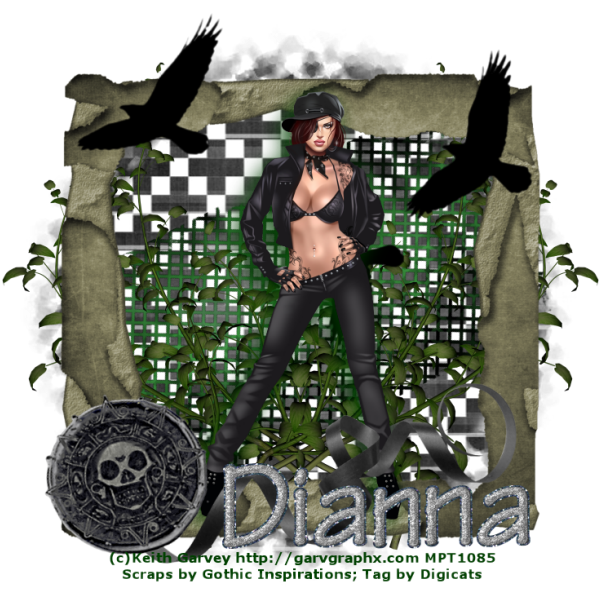
Gothic Gateway


This tutorial was written by Dianna Richards of Digicats (and Dogs)/Di Before Dawn Tutorials. Any resemblance to any other tutorial, published or unpublished, living, dead or undead, is purely coincidental.

Please do not rebroadcast, redistribute or otherwise claim this tutorial or any part there of as your own work.


Items you will need to complete this project:

The Gateway to Annwn taggers kit by Gothic Inspirations. This is a PTU kit, which is available at Digital Chaos.

Tube of choice. I am using psp15197 SC-Patch by Keith Garvey. You must have a license to use this tube, which is available at MyPSPTubes.com.

Wee Scots Lass mask #201 which you can download HERE.

Font(s) and/or alpha of choice. I am using Verdana which is a windows system font, and the Moonbeam Alpha by Julie It Is. This is a FTU alpha that may be downloaded HERE.


Note that H# and V# refer to horizontal and vertical coordinates on your canvas grid. Make sure you have View, Rulers checked in order to see the ruler grid.

When I say "Add to your canvas" I expect that you will copy and paste it as a new layer, unless otherwise state in the tutorial.

This tutorial assumes you have a working knowledge of PSP. It was written using PSP X1, but should work in PSP 8 and up.

To begin, open a new raster layer canvas, 800 x 800 pxls, flood fill white.

Open Paper8-GI_G.T.A. Go to Layers --> Load/Save Mask --> Load Mask from Disk and select Wee Scots Lass mask 201. Make sure the fit to canvas box is checked, then click on load.

Edit --> Copy Merged, add to main canvas, centered.

Open Mesh-GI_G.T.A. and add to main canvas, centered. Image --> free rotate --> free rotate left, 25 degrees.

Open Leaves-GI_G.T.A. and add to main canvas, centered at H300, V400. Duplicate, Mirror.

Open Frame5_GI_G.T.A. and add to main canvas, centered.

Open Crows-GI_G.T.A. and add to main canvas, centered at H400, V250.

Open psp15197-SCGarvey-Patch, copy tube layer and add to canvas, centered.

Add drop shadow of choice to tube. I am using offsets of vertical 7, horizontal -7, opacity 85, blur 35, color Very Dark Green (#004000).

Open Ribbon3-GI_G.T.A., resize to 75% and add to main canvas, centered at H400, V600.

Open GatewayBrad-GI_G.T.A, resize to 50% and add to main canvas, centerd at H180, V600. Image --> Free Rotate --> Rotate left, 15 degrees.

On the Materials pallet, set your forground color to transparent and your background color to very dark green (#004000). Using font of choice, add the copyright information to your tag.

For the Patch tube, that information is:

(c)Keith Garvey http://garvgraphx.com Your_MPTLicense#

I am using Verdana, 4 points, centered and bold.

You can then save the artist's copy of your tag as a .pspimage.

Using font or alpha of choice, add name of choice to tag centered around H600, V650. Actual location will vary depending upon size and length of name used.

Delete the white background layer and go to Layers --> Merge --> Merge Visible. Resize your image to 75% (600 x 600 pxls) and save as a .png file and you're all done!

I hope you enjoyed this tutorial. If you should have a problem, please feel free to E-Mail Me and I'll be happy to help you out.
Friday, March 19, 2010

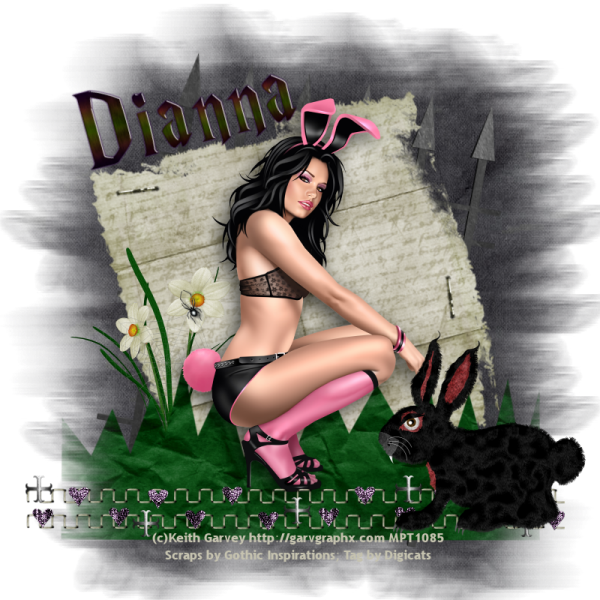
A Gothic Easter Tutorial

Darker Side of Easter


This tutorial was written by Dianna Richards of Digicats (and Dogs)/Di Before Dawn Tutorials. Any resemblance to any other tutorial, published or unpublished, living, dead or undead, is purely coincidental.

Please do not rebroadcast, redistribute or otherwise claim this tutorial or any part there of as your own work.


Items you will need to complete this project:

The Darker Side of Easter taggers kit by Gothic Inspirations. This is a PTU kit, which is available exclusively at Digital Chaos.

Tube of choice. I am using psp13160 SC-Bunny by Keith Garvey. You must have a license to use this tube, which is available at MyPSPTubes.com.

Wee Scots Lass mask #260 which you can download HERE.

Font(s) and/or alpha of choice. I am using Trebuchet MS which is a windows system font, and the Halloween Town Alpha by Myst Designs. This is a full size, FTU alpha that can be downloaded from Myst Designs Blog.


Note that H# and V# refer to Horizontal and vertical coordinates on your canvas grid. Make sure you have View, Rulers checked in order to see the ruler grid.

When I say "Add to your canvas" I expect that you will copy and paste it as a new layer, unless otherwise state in the tutorial.

This tutorial assumes you have a working knowledge of PSP. It was written using PSP X1, but should work in PSP 8 and up.

Open a new raster layer canvas, 800 x 800 pxls, flood filled white.

Open Paper 8 (or papers of Choice). Layers --> Load/Save Mask--> Load Mask from Disk and locate Wee Scott's Lass mask 260. Make sure the fit to canvas button is checked, then click load.

Copy merged and add to you main canvas, centered.

Open Fence and add to main canvas, centered. Image --> Free Rotate --> Rotate Right, 10 degrees.

Open Parchment and resize to 75%. Add to main canvas, centered. Image --> Free Rotate --> Rotate Left, 15 degrees.

Open Flowers and resize to 50%. Add to main canvas, centered at H220, V480.

Open a new raster layer canvas, 800 x 800 pxls, transparent. Open Grass, and add to the new canvas, centered at H400, V600.

Layers --> Load/Save Mask--> Load Mask from Disk and locate Wee Scott's Lass mask 260. Make sure the fit to canvas button is checked, then click load.

Copy merged, and add to main canvas, centered at H400, V600. (You can then dismiss the canvas you just opened.)

Open psp13160 SCGarvey-Bunny, copy the tube layer, and add to canvas, centered. Add a drop shadow of choice. (I am using Vertical offset of 7, horizontal offset of -7, opacity 65, blur 35, color black #000000.)

Open border, and add to canvas, centered at H400, V680.

Open Evil Rabbit, resize to 50% and add to canvas, centered at H650, V580.

Open Staple, and resize to 50%. Add to main canvas centered at H150, V250. Image --> Free Rotate --> Rotate Left, 7 degrees.

Duplicate layer. Image, free rotate, rotate left, 90 degrees. Relocated the duplicated layer to H400, V600 of the main canvas.

On the materials pallet, set your foreground color to transparent, and your background color to #c5c2af, which is the color of the parchment.

Using font of choice, add the copyright information to your tag. For the Garvey Bunny tube, that information is:

(c)Keith Garvey http://garvgraphx.com Your_MPT_License#

I am using Trebuchet MS, which is a windows system font, 4 points, centered, bold.

You may then save the artist's copy of your tag as a .pspimage file.

Using font of alpha of choice, add the name of choice to tag, centered at or around H150, V250. Image --> Free Rotate --> Rotate left, 15 degrees (to match parchment). Actual placement will depend upon size and length of name, so adjust accordingly. If necessary drag the name layer behind the tube on the layers pallet to the name is behind bunny ears if it's on the longish side.

Delete the while background layer. Merge visible, and resize to 75% (600 x 600 pxls), save as a .png file, and your all done!

I hope you enjoyed this tutorial. If you should have a problem, please feel free to E-Mail Me and I'll be happy to help you out.